Table of Contents
ToggleWhether you’re grinding ranked or just looking to improve your League of Legends experience, display settings matter more than you think. Full screen mode isn’t just about aesthetics, it’s one of the quickest wins for getting that competitive edge without touching your build or mechanics. Players often overlook this simple tweak, but once you know how to make League of Legends full screen, you’ll notice the difference immediately. This guide walks you through everything: the exact steps for enabling full screen, why it matters for your gameplay, and how to solve the quirky issues that sometimes pop up. Let’s get your client running at its best.
Key Takeaways
- Enabling full screen in League of Legends improves FPS by 5–30% and reduces input lag by eliminating OS interference, giving you a competitive edge in ranked games.
- To make League of Legends full screen, navigate to Video Settings, find the Window Mode dropdown, and select Full Screen, then apply the changes and restart.
- Full screen mode eliminates accidental clicks, reduces screen tearing, and creates immersion that sharpens focus and reaction time during intense teamfights.
- If League crashes when entering full screen, update your graphics drivers (Nvidia, AMD, or Intel) or disable overlapping applications like Discord overlay and OBS.
- For multi-monitor setups or frequent task-switching, borderless windowed mode provides flexibility with minimal performance loss, though exclusive full screen remains optimal for focused ranked play.
- Pairing full screen with updated drivers, disabled background apps, and matching your in-game resolution to your monitor’s native resolution maximizes performance and stability.
Why Full Screen Mode Matters For League Of Legends
Full screen mode isn’t just a preference, it’s a performance and competitive necessity for serious players. When you shift from windowed mode to full screen, your system allocates resources differently. The operating system stops rendering everything else on your desktop, and your GPU focuses entirely on League. This fundamental change affects everything from framerates to input responsiveness.
The difference becomes obvious during intense teamfights. Your monitor and graphics card work in harmony without competing for attention. Windows notifications, background apps, and system processes can’t interrupt your display output in full screen. For a game where reaction time separates gold from platinum players, this matters.
Performance Benefits And Frame Rate Improvements
Full screen mode delivers consistent FPS boosts because your GPU isn’t divided between multiple tasks. When running in windowed mode, even if nothing’s visibly happening in the background, Windows still manages the desktop, system tray, and other overhead. Your frame rate might fluctuate between 140 and 160 FPS instead of holding steady.
On older systems or mid-range gaming laptops, this difference compounds. A player might see 20-30 additional frames per second just by switching to full screen. That 20 FPS increase means smoother animations, quicker ability responsiveness, and less stuttering during crucial moments. If you’re already pushing 144+ FPS on a high-refresh monitor, stable full screen delivery prevents the frame pacing issues that create micro-stutters.
VSync behaves more predictably in full screen too. When enabled, it synchronizes your frame output to your monitor’s refresh rate without the latency penalties that sometimes occur in windowed mode. The result is buttery-smooth gameplay without screen tearing.
Competitive Gaming Advantages
Competitive League players don’t use full screen for vanity. Watch any pro streamer’s setup, and their League client runs in pure full screen, no second monitors, no Discord visible, nothing. This singular focus reflects game sense: minimizing distractions maximizes performance.
Full screen eliminates accidental clicks outside the game window. If your mouse drifts just slightly and you’re in windowed mode, you might accidentally alt-tab or click the taskbar mid-teamfight. In full screen, your inputs stay locked to the game. Your cursor can’t wander off-screen, and your keyboard commands execute without OS interference.
The psychological effect matters too. Full screen creates immersion that sharpens decision-making. You’re not subconsciously aware of your second monitor or desktop. Your brain treats League as the entire world, which improves focus and reaction time during ranked games.
Reducing Screen Tearing And Input Lag
Screen tearing, those horizontal lines that flicker across your display, happens when your GPU and monitor refresh rates fall out of sync. Full screen mode lets your GPU communicate directly with your monitor without Windows intermediating the signal. This direct connection eliminates most tearing and reduces the buffer lag that windowed mode introduces.
Input lag, measured in milliseconds, comes from display buffers and OS processing delays. Full screen shaves several milliseconds off your input-to-screen response time. When you click to move or cast an ability, full screen delivers that action to your monitor faster than windowed mode. Pro players feel this difference immediately, especially on high-refresh displays.
VSync in full screen creates a smooth, predictable visual experience without the variable latency of windowed VSync. If you’ve ever felt like your champion moves “sluggish” or abilities register a split-second late, full screen mode often solves it.
How To Enable Full Screen Mode In League Of Legends
Getting League running in full screen is straightforward, though the exact path depends on your client version. As of 2026, the process remains consistent across PC platforms, but here’s the exact walkthrough.
Adjusting Settings In Game
Launch League of Legends and get to the main menu. Once you’re logged in and see the champion select or main lobby screen, look for the settings icon, it’s typically a gear symbol in the top-right or bottom-right corner. Click it to open your settings menu.
You’ll see several tabs. The one you want is labeled “Video” or “Display Settings.” This is where all your graphics and window mode options live. Don’t confuse this with audio or gameplay settings: you’re specifically hunting the video configuration.
Inside the video settings, scroll down until you find the “Window Mode” dropdown. This is the critical toggle. The options usually read:
- Full Screen
- Borderless Windowed
- Windowed
You might also see terminology like “Exclusive Full Screen” or “Windowed Full Screen.” These work slightly differently, but “Full Screen” is the standard choice for competitive play.
Finding The Video Tab And Display Options
Sometimes the settings menu is organized differently depending on whether you’re using the legacy client or the newer client redesign. If you don’t immediately see a “Video” tab, look for “Game” or “Graphics” options. The actual tab name varies, but it always contains resolution and window mode settings.
In the video settings panel, you’ll also see your current resolution displayed. Write this down before making changes, you’ll want to verify it afterward. The resolution field typically shows something like “1920 x 1080” or “2560 x 1440.” Full screen mode works best when your in-game resolution matches your monitor’s native resolution.
If you’re unsure about your monitor’s native resolution, right-click your desktop (outside of League), select “Display Settings,” and check the resolution listed there. That’s your target number.
Switching From Windowed To Full Screen
Once you’ve located the Window Mode dropdown, click it and select “Full Screen.” That’s genuinely it. A confirmation message might appear asking if you want to apply the change. Click “Apply” or “OK” to confirm.
Your screen will go black for a moment, don’t panic. League is switching video modes and applying your settings. This usually takes 2-5 seconds. The game will return in full screen, filling your entire monitor with no borders, taskbar, or desktop visible.
Load into a practice tool game or ARAM to verify. Play for a minute or two and confirm your FPS is stable and there’s no flickering or tearing. If everything looks good, you’re done. Close League normally and your settings will save for next time.
Some players prefer borderless windowed mode for convenience, especially if they stream or alt-tab frequently. But for pure performance and competitive play, exclusive full screen is the way to go.
Troubleshooting Full Screen Issues
Full screen usually works flawlessly, but occasional hiccups happen. Here’s how to handle the most common ones.
Game Crashes When Entering Full Screen Mode
If League closes or crashes the moment you switch to full screen, you’re likely hitting a graphics driver incompatibility or display settings conflict. This is frustrating but fixable.
First, try reverting to windowed mode, then restart your computer fully. Restart-and-retry solves more issues than you’d expect. Once your system boots, try switching to full screen again. Sometimes a temporary cache issue or display driver glitch resolves itself with a restart.
If it crashes again, your graphics driver needs updating. Whether you’re running Nvidia, AMD, or Intel integrated graphics, outdated drivers are the prime suspect. Visit your GPU manufacturer’s website, download the latest driver, and install it. Nvidia and AMD both have automatic update utilities, or you can manually download from their driver download pages.
After installing the new driver, restart again and try full screen mode. This solves 90% of full screen crash issues.
If crashes persist, you might have a conflicting background application. OBS, some streaming software, overlays like Discord overlay, and certain RGB lighting apps can interfere with full screen mode. Temporarily disable any overlays or exit applications running in the background, then test full screen again.
Resolution Not Displaying Correctly
You’ve switched to full screen, but the image looks stretched, pixelated, or the resolution seems off. This happens when your in-game resolution doesn’t match your monitor’s native resolution.
Go back into Video Settings and check the resolution dropdown. Your monitor’s native resolution should be available, it’s typically the highest number listed. Select it explicitly. If your monitor is 1440p and League is set to 1080p, the game stretches across your full screen, causing that distorted look.
Apply the change and restart League. The image should now render crisp and properly scaled.
If your monitor’s native resolution isn’t listed, your graphics driver is outdated. Again, update your GPU drivers from Nvidia, AMD, or Intel. After updating, restart and the correct resolutions should populate the dropdown.
Occasionally, Windows display scaling interferes with League. If text looks huge or tiny compared to normal, go to Windows Display Settings (right-click desktop, select Display Settings) and ensure scaling is set to 100%. Some systems default to 125% or 150%, which confuses League’s resolution detection.
Alt Tab Problems And Window Focus Loss
You’re playing, press Alt+Tab to switch to Discord or another window, and League either crashes, goes black, minimizes, or refuses to return properly. This is annoying during ranked and typically means your system and League are fighting over display focus.
The simplest fix is to avoid Alt+Tab entirely in full screen. Sounds harsh, but that’s the tradeoff for exclusive full screen mode. Use borderless windowed if you need frequent task-switching. But, if you want to keep full screen, here’s a workaround:
Before alt-tabbing, pause League (press Escape, then hit the pause button if in-game). Some players swear this prevents focus loss issues. It doesn’t always work, but it’s worth trying.
If League regularly loses focus or crashes when you alt-tab, enable “Fullscreen Windowed” mode instead, it’s borderless full screen that handles alt-tabbing more gracefully, though with a minor performance hit.
To prevent accidental alt-tabs, adjust your Windows notification settings to suppress notifications while gaming. Go to Windows Settings > Focus Assist, and enable “Gaming” mode. This silences OS-level interruptions that might pull your attention away.
One more check: ensure Discord’s overlay is disabled if you use Discord. Open Discord Settings > Overlay > toggle off “Enable in-game overlay.” Discord’s overlay can conflict with League’s full screen, causing focus and display issues.
Full Screen Vs Borderless Windowed Mode: Which Is Better
This is the eternal debate in gaming. Both modes have merits, and your choice depends on your priorities.
Performance Comparison
Exclusive full screen wins on raw performance every time. Your GPU operates in a completely isolated environment. Windows can’t access the display, and no system-level interference affects your frame rate. Most players get 5-15% better FPS and more stable frame pacing in exclusive full screen.
Borderless windowed (also called “windowed full screen”) keeps you in a window that spans your whole monitor without borders. Performance-wise, it’s marginally worse than exclusive full screen because Windows still manages the display. You might lose 2-10 FPS depending on your system specs and background load. Input lag is slightly higher too, typically 1-2 milliseconds extra, though most players don’t consciously notice.
On powerful gaming PCs with RTX 4090s and i9s, the difference is negligible. You’ll maintain 240+ FPS either way. But on mid-range systems, especially gaming laptops, exclusive full screen’s performance advantage is noticeable.
But, borderless windowed removes VSync latency issues sometimes present in exclusive full screen. If you enable VSync in exclusive full screen and experience input lag, borderless windowed sometimes feels more responsive.
Flexibility And Multitasking Considerations
Borderless windowed dominates here. Your cursor can freely move between monitors. You can alt-tab instantly and seamlessly switch to Discord, browser, or another app. The taskbar remains accessible. You’re not locked into League’s display.
This matters if you stream, watch guides on a second monitor, or play with friends on voice comms you’re actively managing. Streamers almost universally use borderless windowed because they can interact with chat, OBS, and alerts without alt-tabbing out of the game.
Exclusive full screen locks you down. Alt-tab works, but it’s clunky and can cause the issues mentioned earlier. Your cursor can’t escape to another monitor. Discord notifications might not display. You’re completely isolated in League’s world.
For casual play or content creators, borderless windowed is more practical. For ranked grind sessions where you’re 100% focused on League with nothing else happening, exclusive full screen is superior.
Choosing Based On Your Gaming Setup
If you have a single monitor and play ranked seriously, use exclusive full screen. You don’t need the flexibility, and the performance bump matters.
If you have dual monitors, Discord running on the second screen, or you’re a content creator, borderless windowed makes sense. The performance hit is minimal for most systems, and the usability gain is massive.
Consider your typical play style. Are you grinding ranked solo, trying to climb, and focusing intensely? Exclusive full screen. Are you playing casually, watching streams, or streaming yourself? Borderless windowed.
You can test both modes risk-free. Switch between them for a few games, pay attention to how the game feels, and choose accordingly. Your preference might differ from the community consensus, that’s fine. What matters is what feels responsive and smooth to you on your specific system.
Advanced Full Screen Optimization Tips
Once you’ve enabled full screen, these optimizations ensure you’re getting maximum performance.
Updating Graphics Drivers For Optimal Performance
Your graphics driver is the translator between League and your GPU. Outdated drivers mean inefficient communication, wasted performance, and compatibility issues. Gaming sites like DSOGaming regularly publish driver performance breakdowns showing how new releases impact games like League.
Nvidia releases driver updates roughly monthly, sometimes biweekly. AMD does similarly. Check for updates monthly or whenever you notice performance drops.
For Nvidia:
- Visit nvidia.com/Download/driverDetails
- Enter your GPU model
- Download the latest Game Ready driver
- Run the installer and select “Clean Install”
- Restart your computer
For AMD:
- Visit amd.com/en/support
- Select your GPU
- Download the latest Adrenalin driver
- Install and restart
Intel Integrated Graphics:
- Visit intel.com/content/www/us/en/support/products/80243/graphics.html
- Download the latest driver for your CPU generation
- Install and restart
A clean install removes old driver files that sometimes conflict with new versions. It takes 10 minutes and often yields noticeable FPS improvements.
Adjusting GPU And Display Settings
Once your drivers are current, tweak your GPU’s control panel settings for League specifically.
Nvidia Control Panel (right-click desktop, “Nvidia Control Panel”):
- Navigate to “Manage 3D Settings”
- Find “Program Settings” tab
- Add League of Legends (lol.exe) as a custom program
- Set “Power Management Mode” to “Prefer Maximum Performance”
- Enable “Threaded Optimization”
- Set “Vertical Sync” to “Off” (you’ll handle this in-game)
AMD Radeon Settings (right-click desktop, “Radeon Settings”):
- Go to “Gaming”
- Click “Global Settings”
- Set “Tessellation” to “Off”
- Enable “Radeon Image Sharpening” (optional, adds visual clarity)
- Set “Power Efficiency” to “Performance”
These tweaks ensure your GPU prioritizes League’s performance, especially in full screen mode.
In League’s video settings, enable these for stability:
- VSync: Off (for minimal latency) or Fast Sync if available
- Anti-Aliasing: Set to FXAA or off, depending on your GPU
- Shadows: Low or Off on mid-range systems
- Effects: Medium or Low
You’re trading minor visual fidelity for significantly better FPS and full screen stability.
Disabling Background Applications
Even with full screen, background apps consume system resources and can interfere with League’s performance. Before ranked games, close everything unnecessary.
Specific culprits:
- Discord: Close entirely or mute overlay
- OBS/Streaming software: Exit if not actively streaming
- RGB lighting control software: Causes display conflicts
- Antivirus real-time scanning: Temporarily disable during gaming
- Browser windows: Close before ranked
- File downloads: Pause until after games
Press Ctrl+Shift+Esc to open Task Manager. Look at processes consuming CPU or disk resources. Close anything that isn’t essential to your OS. Most gaming setups benefit from disabling 10-20 unnecessary background services.
When you’re ready to play ranked, you want zero competition for your system’s resources. Full screen is just one part of the equation, a clean system is the other.
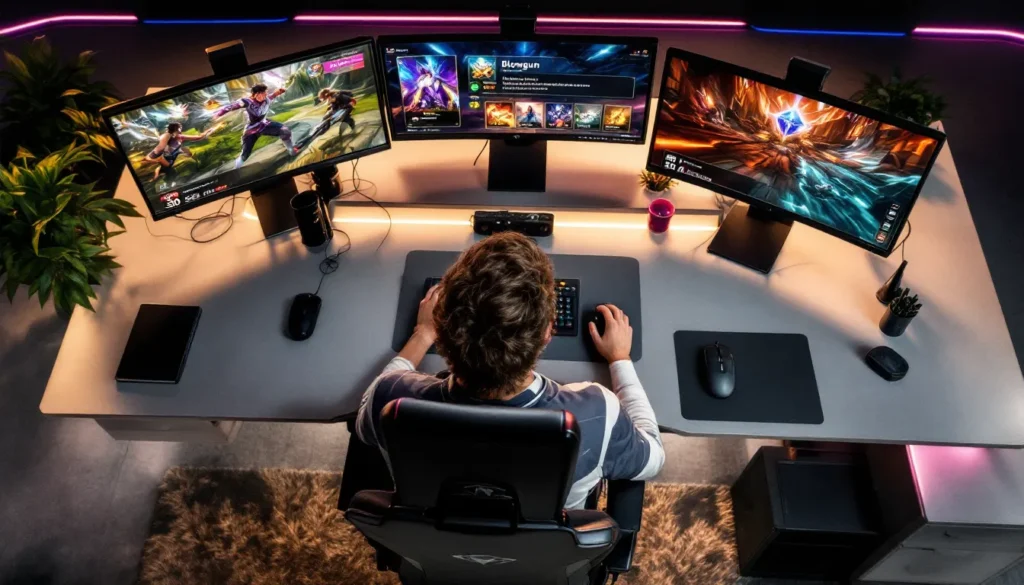
Multi Monitor Setup: Full Screen Strategies
Multi-monitor setups are common for gamers, but full screen gets tricky with multiple displays. Here’s how to handle it.
Managing League Of Legends Across Multiple Displays
If you have dual or triple monitors, exclusive full screen locks League to your primary monitor and disables your other displays while you’re playing. This is intentional, full screen mode assumes you want one game occupying everything.
For serious ranked play, this is fine. You’re focused on League exclusively.
But if you want League on one monitor and Discord or a guide on another, you have two options:
-
Use Borderless Windowed: League appears full-screen but stays in a window, allowing your other monitors to function. This is the pragmatic choice for multi-monitor setups.
-
Use Full Screen on Primary Monitor Only: Keep League in exclusive full screen on your main gaming monitor. Your other monitors will show your desktop or other windows, but there’s a brief display lag when alt-tabbing. It works, but it’s clunky.
Most multi-monitor players opt for borderless windowed because it preserves the convenience of multiple displays without sacrificing too much performance.
But, if you’re playing ranked and have your secondary monitor visible, you’re adding distractions. Your eye drifts to chat notifications or secondary content, killing focus. Some pros actually prefer full screen precisely because it forces singular attention, even if they have a multi-monitor setup. They toggle to borderless windowed only for casual play.
Secondary Monitor Setup For Discord And Chat
If you’re using a second monitor for Discord, guides, or voice chat while playing League, here’s the optimal setup:
Run League in borderless windowed on your primary monitor at your native resolution. Your secondary monitor can display whatever you want, Discord, a streaming chat, game guides, or Netflix between queue pops.
Ensure Discord’s overlay is enabled so you can see notifications without alt-tabbing. In Discord Settings > Overlay, toggle on “Enable In-Game Overlay” and set it to a corner of your screen where it won’t block your vision.
If you’re streaming, run OBS on your secondary monitor. You can read chat, monitor settings, and play League simultaneously.
For voice comms with friends, Discord or in-game chat works fine. Just mute all notifications except direct messages so you’re not constantly distracted.
The key principle: keep your primary monitor dedicated to League, secondary monitors for everything else. Borderless windowed makes this practical without sacrificing too much performance. You’re trading maybe 5 FPS for the ability to glance at chat or guides, which is often a worthwhile tradeoff.
Common Full Screen Questions And Solutions
Players encounter specific quirks repeatedly. Here’s the quick reference for the most common ones.
Black Screen Or Flickering Issues
You boot League in full screen and see a black screen, or the display flickers and won’t stabilize. This usually means your refresh rate isn’t syncing correctly between League and your monitor.
Go into League’s video settings and check the “Display” or “Refresh Rate” option. Common rates are 60Hz, 120Hz, 144Hz, 165Hz, 240Hz. Match this exactly to your monitor’s native refresh rate. If you have a 144Hz monitor and League is set to 165Hz, mismatches occur.
Unsure of your monitor’s native refresh rate? Right-click your desktop, open Display Settings > Advanced Display Settings. Scroll down and look for “Refresh Rate.” That’s your number.
Set League’s refresh rate to match. Apply and restart. The black screen should resolve.
Flickering mid-game usually indicates frame pacing issues. Enable VSync in League’s video settings or disable it completely depending on which reduces flickering. Test both settings for a minute each and stick with what’s stable.
For Nvidia users, enable “Fast Sync” in Nvidia Control Panel (Manage 3D Settings > Vertical Sync > Fast Sync). This provides VSync smoothness without latency.
Full Screen Mode Not Saving After Restart
You set League to full screen, close the game, restart your computer, and it’s back to windowed. Frustrating.
This usually happens if League crashes on exit or your config files are corrupted. Try this:
- Open League and set full screen mode again
- Load into a game to verify it saves during gameplay
- Exit to desktop properly (don’t alt-force-close)
- Restart your computer
- Launch League and confirm full screen persists
If it still reverts, your League config files need resetting. Navigate to:
C:Users[YourUsername]AppDataLocalRiot GamesLeague of LegendsConfig
Find the file named something like game.cfg or config.json. Delete it. Restart League. The game will regenerate the config with your current settings, and it usually sticks.
If that doesn’t work, run League’s repair tool. In the League launcher, click the settings gear, select “Initiate Full Repair,” and let it run. This often resolves persistent config issues.
Specific Issues With Nvidia And AMD Graphics
Nvidia users sometimes experience full screen stuttering even though high FPS. This is often a driver issue or Power Management setting. Go to Nvidia Control Panel > Manage 3D Settings > Program Settings > Add League > Power Management Mode > set to “Prefer Maximum Performance.” Restart League.
Nvidia’s Power Efficiency feature can also interfere. Disable any power-saving modes in your GPU control panel when playing ranked.
AMD users occasionally see flickering in full screen. This is often a driver compatibility issue. Visit AMD’s website and download the absolute latest Adrenalin driver. Install it with a clean installation (choose “Clean Install” during setup) and restart. Most flickering resolves after a driver update.
Both AMD and Nvidia users should also check that their monitor’s display cable is secure. A loose HDMI or DisplayPort cable causes flickering that mimics software issues. Reseat the cable firmly on both ends.
If issues persist after driver updates and cable checks, try reverting to a previous driver version. Sometimes the latest driver introduces regressions. AMD and Nvidia both let you download older drivers from their websites. Roll back one or two versions, restart, and test.
One final check: ensure your monitor is set to its native refresh rate in Windows Display Settings. Right-click desktop, Display Settings > Advanced > Refresh Rate. Match your monitor’s spec. This solves unexplained full screen issues more often than you’d expect.
Conclusion
Full screen mode in League of Legends isn’t magic, but it’s one of the highest-impact adjustments you can make without touching your gameplay. A few extra FPS, reduced input lag, and eliminated distractions compound into noticeably sharper performance, especially during high-stakes ranked games.
The setup takes minutes. Enabling full screen happens in one dropdown. If you encounter issues, the troubleshooting steps above cover 99% of problems. And if you decide borderless windowed suits your setup better, whether you’re streaming, playing casually, or managing a multi-monitor battlestation, that choice is equally valid.
The real takeaway: test both modes, monitor your FPS and responsiveness, and choose what feels best on your system. Some players feel 10 FPS difference instantly. Others don’t notice until they drop 20. Your sensitivity to performance varies.
For competitive ranked climbing, exclusive full screen paired with updated drivers and minimal background processes gives you every software advantage available. For casual play, entertainment value often outweighs marginal performance gains. Either way, understanding how to make League of Legends full screen and when to use it puts you in control of your gaming experience.
Now get in there and climb. Your system’s optimized, that’s your edge.